
Version 1.2.3 · Android · free & ad-free
Your home network on the go – encrypted to your own router.
Router VPN connects your Android phone to your own router at home over a WireGuard tunnel, for example a FRITZ!Box. On the go you reach your phone system, network storage, smart home or the router’s interface just like on your sofa – no account, no third-party VPN server, no ads.
Release notes – what’s new?
1.2.3 · Nov 17, 2026
- Setup help: the FRITZ!Box button now has its correct name, “Add (WireGuard) Connection”. It previously said “Add VPN connection”, which is the button on the IPSec tab.
1.2.2 · Nov 15, 2026
- German: the app now uses the formal form of address („Sie“) in all its texts, the setup help and the explanations. The other languages are unchanged.
1.2.1 · Nov 14, 2026
- More precise privacy notes: the app now describes exactly how it recognises your home – only with “Automatic by network” and only with a FRITZ!Box.
- Clearer help: the connection test it describes now also works with the default “Only our apps”, and the FRITZ!Box guide explains both ways to confirm (a button on the box or the key sequence on a phone).
1.2.0 · Nov 13, 2026
- Router VPN now also speaks French and Spanish: all texts of the app, the setup help and the explanations.
- Choose the language in the menu at the top right under “Sprache / Language / Langue / Idioma”. Without your own choice, the app follows your phone’s language.
1.1.1 · Oct 18, 2026
- The app now only asks your router for its device ID when “Automatic by network” is on.
- Softstringsphone Pro is always recognised with “Only our apps”.
1.1.0 · Oct 18, 2026
- New: you decide what goes through the VPN – only our apps (recommended), selected apps, all except exclusions, or all.
- Where to: home network only – the internet stays direct and fast – or everything through your connection at home, e.g. on open Wi-Fi.
- Automatic by network: own rules for mobile data, other Wi-Fi and at home, where the VPN can rest. Home is recognised by your router, without location access.
- For pros: additional address ranges, DNS, MTU and keepalive.
- Existing connections stay as before until you accept the recommendation.
1.0.1 · Oct 17, 2026
- New app icon: the shield with the phone handset – matching our phone apps Softstringsphone and Softstringsphone Pro.
1.0.0 · Oct 15, 2026
- First version: WireGuard VPN from your phone to your own router at home – to the FRITZ!Box or any other WireGuard server.
- Set up by QR code (read on the phone), settings file or text; the setup help shows every step on the FRITZ!Box.
- Several connections, one on at a time; quick settings tile, “Always-on VPN” and back on after a restart.
- If the router stops answering (e.g. after the daily reconnect), the app reconnects by itself.
- No ads, no analytics, no account; the settings are stored encrypted on the phone only.
- Free
- No ads, no tracking
- No account
- Encrypted with WireGuard
 Made for Softstringsphone and Fritten&Fax:With our apps you call and fax through your FRITZ!Box on the go – Router VPN builds the way home. →
Why Router VPN?
Your own way home – instead of a third-party VPN service.
Your tunnel, your router
The tunnel always ends at the router whose settings you import yourself. We run no VPN servers – your traffic never passes through us.
Private, not a platform
No account, no ads, no analytics, no tracking. The app collects no data and sends nothing to us or to third parties.
Set up in three minutes
Scan the FRITZ!Box QR code, choose the file wg_config.conf or paste its text – done. The setup help shows every step.
The internet stays fast
By default only our apps and only connections to your home network use the tunnel. Everything else goes direct as usual.
How it works
From your phone through the tunnel into your home network
Router VPN uses Android’s VPN interface to build a WireGuard-encrypted tunnel to your router. To your home network the phone then looks as if it were at home – without the router having to expose telephony or network storage to the internet.
No server in between: we run no VPN servers and never see your traffic.
Create an access on the router
On the FRITZ!Box add a device under Internet → Permit Access → VPN (WireGuard). The box shows a QR code and offers the file wg_config.conf.
Import it into Router VPN
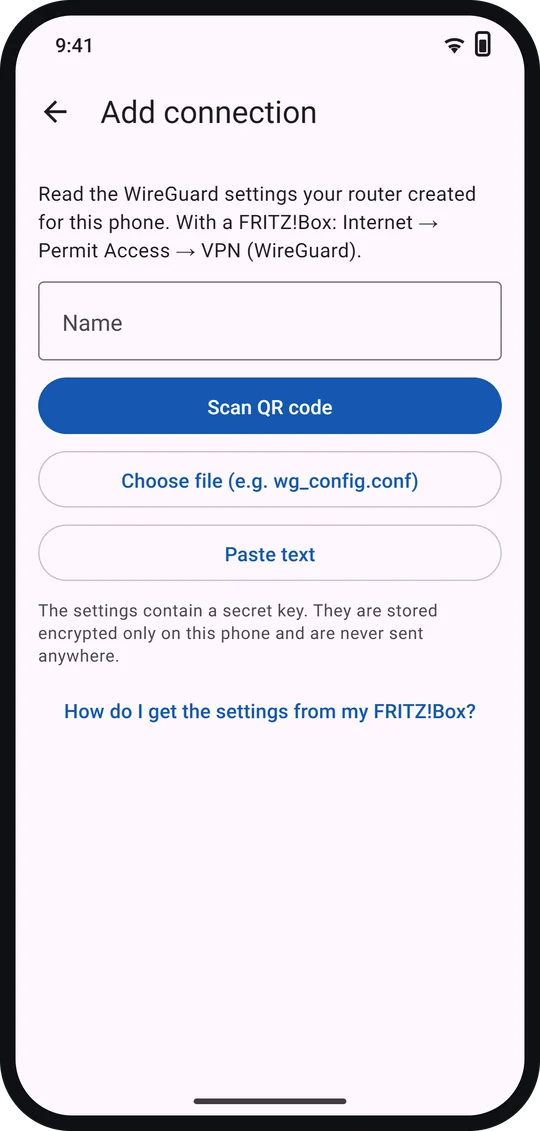
Tap “Add connection”: scan the QR code, choose the file or paste the text. The settings are stored encrypted on the phone only.
Switch on – done
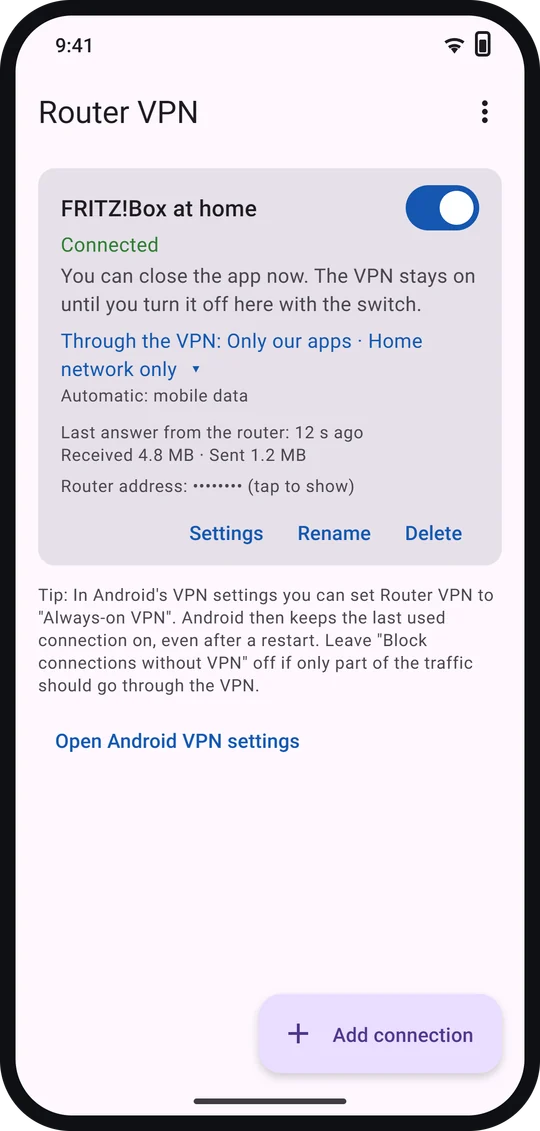
When you’re out, tap the switch. Router VPN shows “Connected”, the router’s last answer and the amount of data. You can close the app afterwards.
Features
What Router VPN can do
A lean WireGuard client for exactly one job: connecting your phone securely to your own router.
QR code, file or text
The app reads the FRITZ!Box QR code right on the phone. Or choose the file wg_config.conf or paste its text.
Setup help
Step by step from the VPN access on the FRITZ!Box to the test – with hints for other routers.
One switch, everything in view
“Connected”, the router’s last answer and the amount of data at a glance.
Reconnects by itself
If the router gets a new internet address, for example after the daily reconnect, the app rebuilds the tunnel by itself. This works thanks to the keepalive, which the FRITZ!Box already sets.
Quick settings tile
“Router VPN” in Android’s quick settings: switch it on and off without opening the app. Add the tile once yourself: pull the quick settings all the way down, tap Edit or the pencil and drag “Router VPN” in.
Always-on VPN
Supports Android’s “Always-on VPN” and comes back on after a restart. You can close the app – the VPN keeps running.
Which apps?
Only our apps, selected apps, all except exclusions (e.g. banking or streaming) or all apps.
Where to?
Home network only – the internet stays direct and fast – or everything through your connection at home, e.g. on open Wi-Fi.
Automatic by network
Own rules for mobile data, other Wi-Fi and your Wi-Fi at home, where the VPN can rest. Home is recognised by your router (FRITZ!Box) – without location access. With other routers, the rule for other Wi-Fi networks applies at home.
Several connections
For example home and office. Only one is on at a time; switching on another ends the current one.
For pros
Additional address ranges, name resolution (DNS), MTU and keepalive (keeps the tunnel open) – with “Reset to recommendation” at any time.
Address hidden
Your router’s address stays hidden on screen until you tap it – handy for screenshots.
You decide
What goes through the VPN?
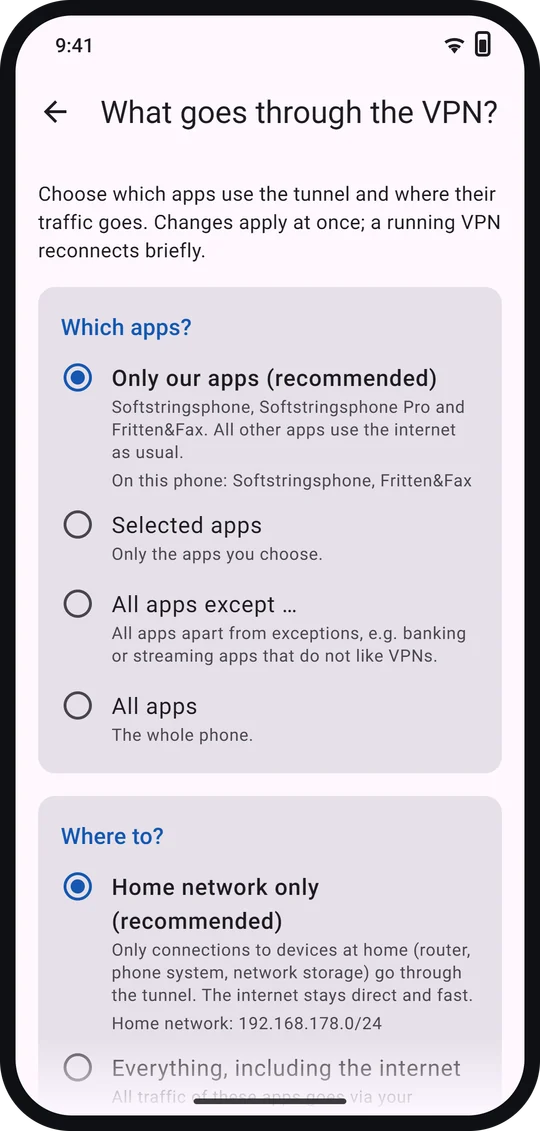
On each connection you choose under “Settings” which apps use the tunnel and where their traffic goes. New connections get the recommendation – so the rest of your internet stays untouched.
Which apps?
- Only our appsRecommendedSoftstringsphone, Softstringsphone Pro and Fritten&Fax
- Selected appsonly the apps you tick – e.g. the browser plus our apps
- All apps except …the whole phone except exclusions such as banking or streaming
- All appsthe whole phone
Where to?
- Home network onlyRecommendedonly connections to devices at home – the internet stays direct and fast
- Everything, including the internetthrough your connection at home – useful on open Wi-Fi; “Local networks direct” is on by default, so printers and the hotel Wi-Fi login page stay reachable
Automatic by network
Optionally, Router VPN picks the rule by itself depending on where you are:
Home is recognised by your router’s device ID (FRITZ!Box) – without location access and without reading Wi-Fi names. With other routers, the rule for other Wi-Fi networks applies at home.
Advanced
Under “Show advanced settings”: additional address ranges at home, name resolution (DNS: as set by the router, from the current network or your own servers), MTU and keepalive. The keepalive is a small packet sent at fixed intervals: it keeps the connection open and lets the app notice a new router address – don’t set it to 0. “Reset to recommendation” restores everything and also turns off the automatic mode.
Router VPN explained
What Router VPN is for, where the WireGuard tunnel goes, which traffic uses it and why no data is collected – with step-by-step FRITZ!Box setup and troubleshooting.
Router VPN explained: tunnel, privacy, setupA look inside
As tidy as a light switch
The app’s screens with sample data. Router VPN is available in English, German, French and Spanish.
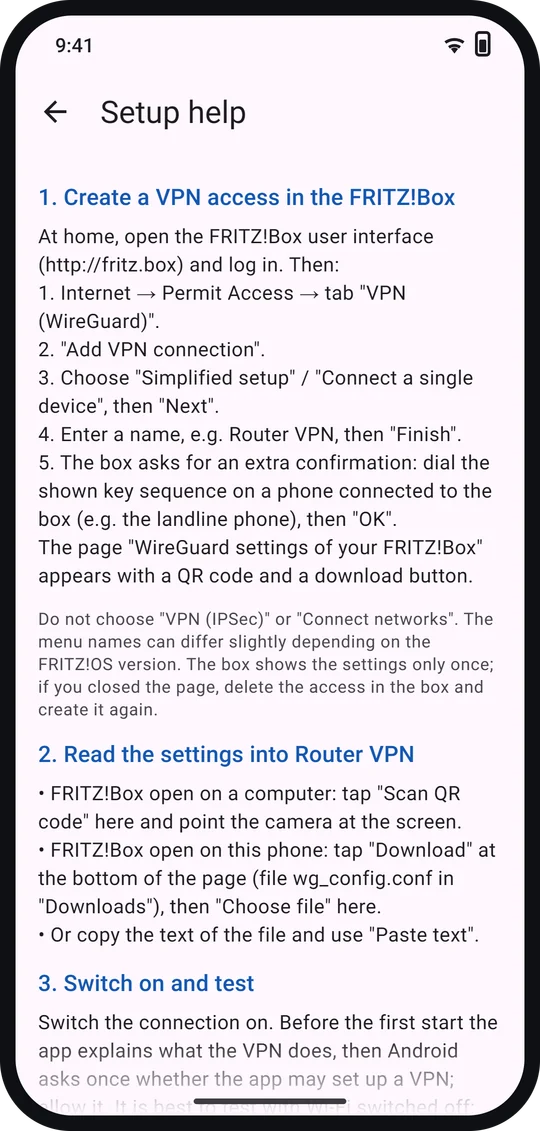
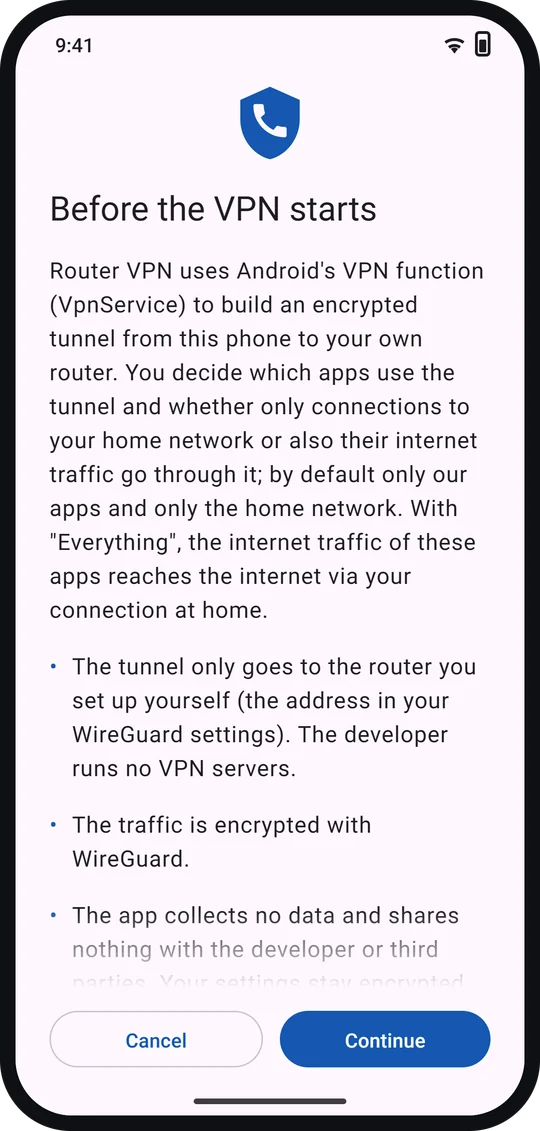
Recreation of the app’s screens with sample data (“FRITZ!Box at home”); texts and colours as in the app.
Privacy and security
Private by principle
Router VPN collects no data. The tunnel only leads to your router – not to us and not to third parties.
No data collection
No account, no ad or analytics libraries, no logs. The app neither analyses, modifies nor redirects the traffic in the tunnel.
Your key stays on the phone
The imported settings with the private key are encrypted with AES-256-GCM (key in the Android Keystore) and stored on this phone only – not in backups, never in logs.
WireGuard
The tunnel uses the official WireGuard library – a modern, lean VPN with strong encryption.
No third-party server
Only the settings your router generated determine where the tunnel goes. We don’t see your traffic and cannot see it.
QR code read on the phone
The camera only runs when you tap “Scan QR code”. Recognition happens on the phone (ZXing, without Google Play services); images are neither stored nor sent.
No location access
Whether you are at home is recognised by your router’s device ID – only with “Automatic by network”. Once, through the tunnel, the app notes your router’s fixed ID at its home network address. In the Wi-Fi you are connected to, it asks the same address directly: if your router answers there, you are at home; in another Wi-Fi network no device answers there, or one with a different ID does. No data about you is sent.
Explain first, then start
Before the first start the app explains under “Before the VPN starts” what the VPN does; then Android asks for permission. You can switch it off at any time.
Few permissions
VPN, internet, network state, camera only for the QR code, start after a restart – plus the list of apps in the app drawer for your selection, which stays on the phone. No location, no contacts, no advertising ID.
Made to match
Made for Softstringsphone and Fritten&Fax
Router VPN works with any home network and any app. It already knows our own apps: with the default “Only our apps”, exactly they go through the tunnel.
Softstringsphone
Make calls through your FRITZ!Box with your phone – with your landline number, call list and the box’s phone book. Free and ad-free.
Visit the websiteSoftstringsphonePRO
Phone, fax and AI assistant in one app – the AI runs exclusively on your phone.
Visit the websiteFritten&Fax
Send and receive faxes through your FRITZ!Box – on Windows and on your Android phone. No cloud, no subscription, no fax machine.
Visit the websiteWhy a separate app?
Google Play only allows Android’s VPN interface in apps whose main purpose is a VPN. That’s why, since Softstringsphone 1.1.0 and Pro 2.3.0, the tunnel lives in Router VPN instead of the phone apps. The phone apps show whether the VPN is running and open Router VPN at the tap of a button.
Setup
Set up in three minutes – using a FRITZ!Box as an example
- At home, open http://fritz.box in a browser: Internet → Permit Access → “VPN (WireGuard)” → “Add (WireGuard) Connection” → “Connect a single device”. Enter a name and confirm the box’s request – with a button on the box or with a connected phone (key sequence shown).
- The box shows “WireGuard settings of your FRITZ!Box” with a QR code and a download button. Leave this page open – it appears only once.
- In Router VPN tap “Add connection”: scan the QR code on your computer screen – or choose the file wg_config.conf or paste its text.
- Turn on the switch, confirm the disclosure “Before the VPN starts” with “Continue” and allow Android’s connection request with “OK”.
- Test with Wi-Fi switched off: after a few seconds it shows “Connected” plus the router’s last answer.
Requirements
- Android 8.0 or later
- A FRITZ!Box with WireGuard (FRITZ!OS 7.50 or later) or another WireGuard router or server
- An internet connection through which the router can be reached – with its own public IPv4 address or via IPv6
- For calls: Softstringsphone or Softstringsphone Pro, set up with your FRITZ!Box
Other routers
OpenWrt, GL.iNet, UniFi, Synology or a server of your own: create a WireGuard access (peer) for the phone there and import its settings into Router VPN as a QR code, .conf file or text. If they contain no keepalive (PersistentKeepalive), set one there or in Router VPN under “Show advanced settings”, e.g. 25 seconds – otherwise the app won’t notice a new router address.
Installing without a store
When you open the APK, Android asks once whether installs from this source (for example your browser) are allowed – allow it once. Updates are not automatic: new versions are available here, and your settings are kept when you update.
Help
If it doesn’t work right away
“The router is not answering”
Test with mobile data, not on your own Wi-Fi. Check that the access still exists on the FRITZ!Box (Internet → Permit Access → VPN (WireGuard)); if it was created again, import the new settings. Some public Wi-Fi networks (hotel, office, train) block WireGuard – then try mobile data. After the router gets a new internet address, the app reconnects by itself – as long as the keepalive is on, as with the FRITZ!Box; don’t set it to 0.
“The router’s address was not found”
Is the phone online? The app tries again shortly. On the FRITZ!Box check under Internet → MyFRITZ! Account that the box is registered there; after the box restarts it can take a few minutes until the MyFRITZ! address is correct again.
“These are not WireGuard settings”
Import the QR code or file from Internet → Permit Access → VPN (WireGuard). The MyFRITZ! address alone or an IPSec access is not enough.
DS-Lite connection (no public IPv4 address of its own)
Many cable and some fibre connections have no public IPv4 address of their own; the router can then only be reached via IPv6. The VPN works if your mobile network supports IPv6 too – usually the case on German mobile networks, often not on other Wi-Fi. Remedy: ask your provider for a public IPv4 address.
http://fritz.box doesn’t open in the browser
With the default “Only our apps” the browser does not use the VPN. The easiest way: tap “Through the VPN: … ▾” on the connection and choose “All apps · Home network only”. With “Selected apps” only the ticked apps use the tunnel: tick the browser and also Softstringsphone, Softstringsphone Pro or Fritten&Fax, otherwise these apps lose the VPN. If name resolution is set to “From the current network”, the box can only be reached by its address (e.g. http://192.168.178.1).
Browsing is slow while the VPN is on
Then all traffic goes through your home connection, and its upload speed slows things down. Fix it on the connection: in the quick menu “Through the VPN: … ▾” choose a rule with “Home network only”, or use the “Settings” button and choose “Home network only” under “Where to?”. If “Automatic by network” is on, other Wi-Fi networks have their own rule (suggested: “All apps · Everything”) – change it under “In other Wi-Fi networks” if needed. “Reset to recommendation” also turns off the automatic mode and resets the advanced settings.
Same address range as the other Wi-Fi
Many FRITZ!Boxes use 192.168.178.x. If you are on a Wi-Fi with the same range (e.g. at friends who also have a FRITZ!Box), your home network can’t be reached. Remedy: use mobile data or change the address range of your own box and then create the VPN access again.
“Android did not allow the VPN” or another VPN is active
Android only allows one active VPN at a time. Switch Router VPN on again and tap “OK” when Android asks. If another app is set as “Always-on VPN”, turn that off first: in Router VPN tap “Open Android VPN settings” (depending on the manufacturer, e.g. Settings → Network & internet → VPN) and turn off “Always-on VPN” via the gear icon next to the other app.
FAQ
Frequently asked questions
Is Router VPN a VPN service that hides my address?
No. Router VPN only connects your phone to your own router. If you choose “Everything, including the internet”, you go online through your connection at home – websites then see your home IP address, not someone else’s.
How much does Router VPN cost?
Nothing. No purchases, no ads, no subscription, no account.
Which routers work?
Any WireGuard server: the FRITZ!Box from FRITZ!OS 7.50, OpenWrt, GL.iNet, UniFi, Synology or a server of your own. You need the router’s WireGuard settings as a QR code, .conf file or text. Older FRITZ!Boxes without WireGuard (IPSec only) don’t work.
Do I need Softstringsphone or Fritten&Fax?
No. Router VPN is a standalone WireGuard VPN for your home network – for network storage, smart home or the router’s interface, for example. Instead of “Only our apps”, the easiest choice is “All apps · Home network only” (quick menu “Through the VPN: … ▾” on the connection). With “Selected apps” only the apps you tick use the tunnel – if you also use our apps, tick them too.
Why don’t Softstringsphone and Pro have a built-in VPN any more?
Google Play only allows Android’s VPN interface in apps whose main function is a VPN – a phone app with a built-in tunnel is rejected. Since Softstringsphone 1.1.0 and Pro 2.3.0, Router VPN builds the tunnel instead. Both apps are among the apps Router VPN sends through the tunnel by default, and automatically call through it.
Where are my VPN settings stored?
Only on your phone, encrypted with a key from the Android Keystore. They are not included in Android backups and are never sent. “Delete” on the connection or uninstalling removes them.
Does the VPN keep running when I close the app?
Yes. It stays on until you turn it off – with the switch in the app, the quick settings tile “Router VPN” or in Android’s VPN settings, which you open in the app with “Open Android VPN settings” (depending on the manufacturer, e.g. under Settings → Network & internet → VPN). There you also set “Always-on VPN” via the gear icon next to Router VPN. Add the quick settings tile once yourself: pull the quick settings all the way down, tap Edit or the pencil and drag “Router VPN” in.
Do I need the VPN at home on Wi-Fi?
No. At home your phone reaches your home network directly. With “Automatic by network” the VPN rests there by itself and switches back on when you are out. Home is recognised by your router (FRITZ!Box); with other routers, the rule for other Wi-Fi networks applies at home.
Is Router VPN on Google Play or in the Galaxy Store?
Yes – the buttons are in the download section below. Store versions update automatically. The APK on this page is the same app; with it, install updates via the new APK – your settings are kept.
Does Router VPN work without a camera?
Yes. The camera is not required: you can also choose the settings as a file or paste them as text.
Can I use another VPN at the same time?
No, Android only allows one active VPN at a time. If you use the MyFRITZ!App or the “WireGuard” app for the way home, leave Router VPN off – our apps work with those too.
Which languages is the app available in?
Router VPN and this website are available in English, German, French and Spanish. In the app you choose the language in the menu at the top right; otherwise it follows your phone’s language (English for any other language).
 Router VPNfree · ad-free
Download
Ready? Set up in three minutes.
One APK, no account, no ads. The setup help in the app guides you through the FRITZ!Box.
Download Router VPN (APK)Checksum (SHA-256): 19621e47fdfe566bd26ea3f2222387975fcbac1894d69b2643fc11af21978367To verify on Windows: certutil -hashfile RouterVPN-1.2.3.apk SHA256 · on Linux/macOS: sha256sum RouterVPN-1.2.3.apk
Release notes – what’s new?
1.2.3 · Nov 17, 2026
- Setup help: the FRITZ!Box button now has its correct name, “Add (WireGuard) Connection”. It previously said “Add VPN connection”, which is the button on the IPSec tab.
1.2.2 · Nov 15, 2026
- German: the app now uses the formal form of address („Sie“) in all its texts, the setup help and the explanations. The other languages are unchanged.
1.2.1 · Nov 14, 2026
- More precise privacy notes: the app now describes exactly how it recognises your home – only with “Automatic by network” and only with a FRITZ!Box.
- Clearer help: the connection test it describes now also works with the default “Only our apps”, and the FRITZ!Box guide explains both ways to confirm (a button on the box or the key sequence on a phone).
1.2.0 · Nov 13, 2026
- Router VPN now also speaks French and Spanish: all texts of the app, the setup help and the explanations.
- Choose the language in the menu at the top right under “Sprache / Language / Langue / Idioma”. Without your own choice, the app follows your phone’s language.
1.1.1 · Oct 18, 2026
- The app now only asks your router for its device ID when “Automatic by network” is on.
- Softstringsphone Pro is always recognised with “Only our apps”.
1.1.0 · Oct 18, 2026
- New: you decide what goes through the VPN – only our apps (recommended), selected apps, all except exclusions, or all.
- Where to: home network only – the internet stays direct and fast – or everything through your connection at home, e.g. on open Wi-Fi.
- Automatic by network: own rules for mobile data, other Wi-Fi and at home, where the VPN can rest. Home is recognised by your router, without location access.
- For pros: additional address ranges, DNS, MTU and keepalive.
- Existing connections stay as before until you accept the recommendation.
1.0.1 · Oct 17, 2026
- New app icon: the shield with the phone handset – matching our phone apps Softstringsphone and Softstringsphone Pro.
1.0.0 · Oct 15, 2026
- First version: WireGuard VPN from your phone to your own router at home – to the FRITZ!Box or any other WireGuard server.
- Set up by QR code (read on the phone), settings file or text; the setup help shows every step on the FRITZ!Box.
- Several connections, one on at a time; quick settings tile, “Always-on VPN” and back on after a restart.
- If the router stops answering (e.g. after the daily reconnect), the app reconnects by itself.
- No ads, no analytics, no account; the settings are stored encrypted on the phone only.
Good to know
- Privacy of the app and this page
- Router VPN explained: tunnel, privacy, setup
- Checksums of all files
- Legal notice
From the store
Router VPN is also on Google Play and in the Galaxy Store; store versions update automatically. With the APK, install updates via the new APK – your settings are kept.
Transparency
Traceable and verifiable
Router VPN uses the official WireGuard library for the tunnel; ZXing reads the router’s QR code right on the phone – without Google Play services, without ad or analytics libraries.
Libraries used
| Component | Licence | Project |
|---|---|---|
| WireGuard tunnel (com.wireguard.android:tunnel) | Apache-2.0 | Project page |
| ZXing core (QR-Code) | Apache-2.0 | Project page |
| CameraX (AndroidX) | Apache-2.0 | Project page |
| AndroidX, Jetpack Compose, Material 3 | Apache-2.0 | Project page |
| Kotlin-Standardbibliothek, kotlinx.coroutines | Apache-2.0 | Project page |
Checksums (SHA-256) of all files
All files on this page with size and SHA-256. The same list as a file: SHA256SUMS.txt
| File | Size | SHA-256 |
|---|---|---|
| RouterVPN-1.2.3.apk | 17.6 MB | 19621e47fdfe566bd26ea3f2222387975fcbac1894d69b2643fc11af21978367 |
| bilder/app/de-einstellungen.webp | 57 KB | 4acea46e4042c15df2fc646914a0464bbd1cbe8684cb7d5de770837b77c3b7b9 |
| bilder/app/de-erklaerung.webp | 60 KB | 784d405bb6935bb4cef74e231cb751ae6b0d3072d5f1754f4d05621d26e53db3 |
| bilder/app/de-hilfe.webp | 86 KB | 11e45f99f6b5d318252e02bfd82245cf5399ccf2d098959e758bab8921963de7 |
| bilder/app/de-hinzufuegen.webp | 39 KB | f4c22a08e0e51482bfa7cab9f43b455942c91938c766598f50280856baa26c4c |
| bilder/app/de-verbunden.webp | 49 KB | 6bb9e1d0ef989456591951058af6c5e495cddd8ef0797c559eb77cf069fe1771 |
| bilder/app/en-einstellungen.webp | 55 KB | 293c73490bccf5fd49b42ff7b13db4940e33b08a4d9b815b9c80e4b6c196390a |
| bilder/app/en-erklaerung.webp | 61 KB | f39419c0bfad8a35aa42ff85c89affd2ccf3440b6d0964668f6e8150f257dcc5 |
| bilder/app/en-hilfe.webp | 92 KB | 3d8778503d714fb5d71d1c633ee4b9b7715af792d35e945b73fa2b39a7414cdb |
| bilder/app/en-hinzufuegen.webp | 33 KB | 4c0b91fcb3bbc0ba26e3d40830ce250aebbebaa165758b8d3f5b4e0b99bf015c |
| bilder/app/en-verbunden.webp | 43 KB | de4d65fa782731e39554772ce8e2f95ccc900fc3deef7042267c332805ace2bd |
| bilder/app/es-einstellungen.webp | 56 KB | cfa8284c4226fe4fa981ec2d1df8263acbf018755eeaf9c6b691cbd3270238ca |
| bilder/app/es-erklaerung.webp | 65 KB | 34e6a6f24ca5946595cc1c46b47718a771bf2bca3b7631b8668113b327857d71 |
| bilder/app/es-hilfe.webp | 90 KB | 229ef41526dac098b14e52c2b677c32b94c8f14bd95962b7e0e6cf4ca15c12fa |
| bilder/app/es-hinzufuegen.webp | 36 KB | dd8015058634a7900ed673cbdc0ff1bcc7f843d789ad3e242d10750f1bf0f713 |
| bilder/app/es-verbunden.webp | 50 KB | 8eb1e20c507cecc373663f6472e5868827896b9e579ccf343f80c09c4c1caf1f |
| bilder/app/fr-einstellungen.webp | 55 KB | cb809fc7c2792d805e194c6dbc5de295af313d60e2aa1facdb45aad6cc596b9e |
| bilder/app/fr-erklaerung.webp | 62 KB | 1251441d967910181b2059202111016c72b9b7ee42985dc90f742fd2cdea7d76 |
| bilder/app/fr-hilfe.webp | 91 KB | 7e0112f501b6aef03bc74b138fffc739413aee7fc87f376a15eacd38204a3ac8 |
| bilder/app/fr-hinzufuegen.webp | 40 KB | 0f7367235b7c1fc57c2ad6ed7c34847269901c66da7fa77f00e06f0b4b96058d |
| bilder/app/fr-verbunden.webp | 52 KB | cb2c80aba48c135f322c0e0da22e43c84eb824ef9f433f0993617163cec8a06c |
| bilder/apple-touch-icon.png | 8 KB | 27f9197aebf41efbd0c0d6e27441f9a63e02369e03731dab57d6e36b46f683e1 |
| bilder/apps/softstringsphone.png | 16 KB | 06a642faa9767b1b6b868272246628c6b733f48093f1e622a587dfe0a85ac82d |
| bilder/favicon-32.png | 1 KB | 77ae71453148389d3ad169e32137534d60ad3563422a60fca6fba4767b1ab3b3 |
| bilder/icon-192.png | 9 KB | 1d05936eb2493f260f00319ffa42aa3af7c6f607abccf4fa8839e87a14261683 |
| bilder/icon-512.png | 37 KB | f5bb034981f276049223bc1c9944b52f146cf013ec5b6748042c00c170d2d348 |
| bilder/logo-64.png | 2 KB | b74dc90b1fd9bc89d56af0bab3b947df06b4df3dbf8407edd3ca327b80a1f6b3 |
| bilder/vorschau.jpg | 77 KB | b6a0909aac193ac0668f9e7f14a3b8e20a2797510966208d7f741ec40f7b6ccb |
| bilder/vpn/de-01-verbunden.webp | 37 KB | a3cdc869db484cdce8bd96704a10a7567a0e725adbcd6526224245ed9e5f61d5 |
| bilder/vpn/de-02-hinzufuegen.webp | 30 KB | b45997e0fb3c117de1da3864d4df31a4110a905ba3c4b18eab4c1f32fc6a80c8 |
| bilder/vpn/de-03-hilfe.webp | 56 KB | 523ef94f6ce8603082df624d08d9dbd9e338da811d3a991aa6f8e0341d6424bf |
| bilder/vpn/de-04-erklaerung.webp | 44 KB | 756e213098346d5bb598e0d7720bb8f97416bdc064add8659c5ab41685c68eb6 |
| bilder/vpn/de-05-einstellungen.webp | 40 KB | 82b6f54ea18c5de65502607126a8b6c1ffcb3e478a78f3c34e1e4da75342b156 |
| bilder/vpn/en-01-verbunden.webp | 33 KB | 59305b17477188de35190d374d1c475ef367e49861fbdaba42ed1bfd8d6b1d44 |
| bilder/vpn/en-02-hinzufuegen.webp | 25 KB | 8477d9fa54ebbc72c146a8d05059cfda1bcc8f6210642642bc1828764ca67502 |
| bilder/vpn/en-03-hilfe.webp | 58 KB | c119d2c4cc319963366f80db690a194bbadfd89b6ba1489cf04885b5ce7f9d0e |
| bilder/vpn/en-04-erklaerung.webp | 43 KB | ea0e48e05127bcb1315fbe8b5b8c651fcef23920d98a464439e30eb91641bc2d |
| bilder/vpn/en-05-einstellungen.webp | 39 KB | f52a310f8dfa43daac98451b1c08d3eed5d4f149fefb5bd311a70e5349d75b49 |
| bilder/vpn/es-01-verbunden.webp | 37 KB | a066f0789dbec3c9cc51483c4d88096dcfa76d91cb4491688bee47670ffe9dae |
| bilder/vpn/es-02-hinzufuegen.webp | 26 KB | 7f25440752779a7f199ce41b102a16ff7a2855ede472ef9f82274a404f54870e |
| bilder/vpn/es-03-hilfe.webp | 59 KB | 238f00eeff69be480524891f30dc2469f61bd4b03bf7c92be879cc356ecbeb6d |
| bilder/vpn/es-04-erklaerung.webp | 46 KB | 3f6f6839b806629b333d800ee3057627dcb0d6a3a45cc518c8053eac6520cbd9 |
| bilder/vpn/es-05-einstellungen.webp | 40 KB | 3c83cf6d9177a9cb97a28cee9a58661c5dc2ce2d8894e6cb8b530e7b3139bd15 |
| bilder/vpn/fr-01-verbunden.webp | 37 KB | f71ae5f02064505eec24194ed4e35a8f88ad8f2b3de008e43aa0aa3f06bd48c0 |
| bilder/vpn/fr-02-hinzufuegen.webp | 30 KB | a8bc13e268ad342348d1b33b59e73730596f9a0d724f21a29556a073ffd534e1 |
| bilder/vpn/fr-03-hilfe.webp | 58 KB | 0db3de5acafa3f2917a9da6ad5306b382a018e4130b0cdeaebc90230a9159c11 |
| bilder/vpn/fr-04-erklaerung.webp | 44 KB | b41dd8c3f8d6cefabe8b8c1db422a27321d476cf85a14b9d1a228c2d2673822d |
| bilder/vpn/fr-05-einstellungen.webp | 40 KB | 2ea9d2110333fe41cea77dd1e452a07303d96d9ac0d4bb0c9f7cdae20e49af52 |
| datenschutz.html | 21 KB | 5e5502471d29f3c85e59e53c5d79b44b1b36244e2a4d7d4a8e3f3ad74ef477f1 |
| favicon.ico | 3 KB | 3580ef8fb30af331a2a9627becf436893990b6a55c3aedc6270ecc9b06e5ae03 |
| impressum.html | 9 KB | 4ac414318b899cd93b47cf380e93e8fb35138811fb90d08bf2929dc582e1e7cf |
| privacy.html | 20 KB | be85642d49081d4a6ec0c7a3e888f646bb1a1a43dc2d46ab95dd425c66357887 |